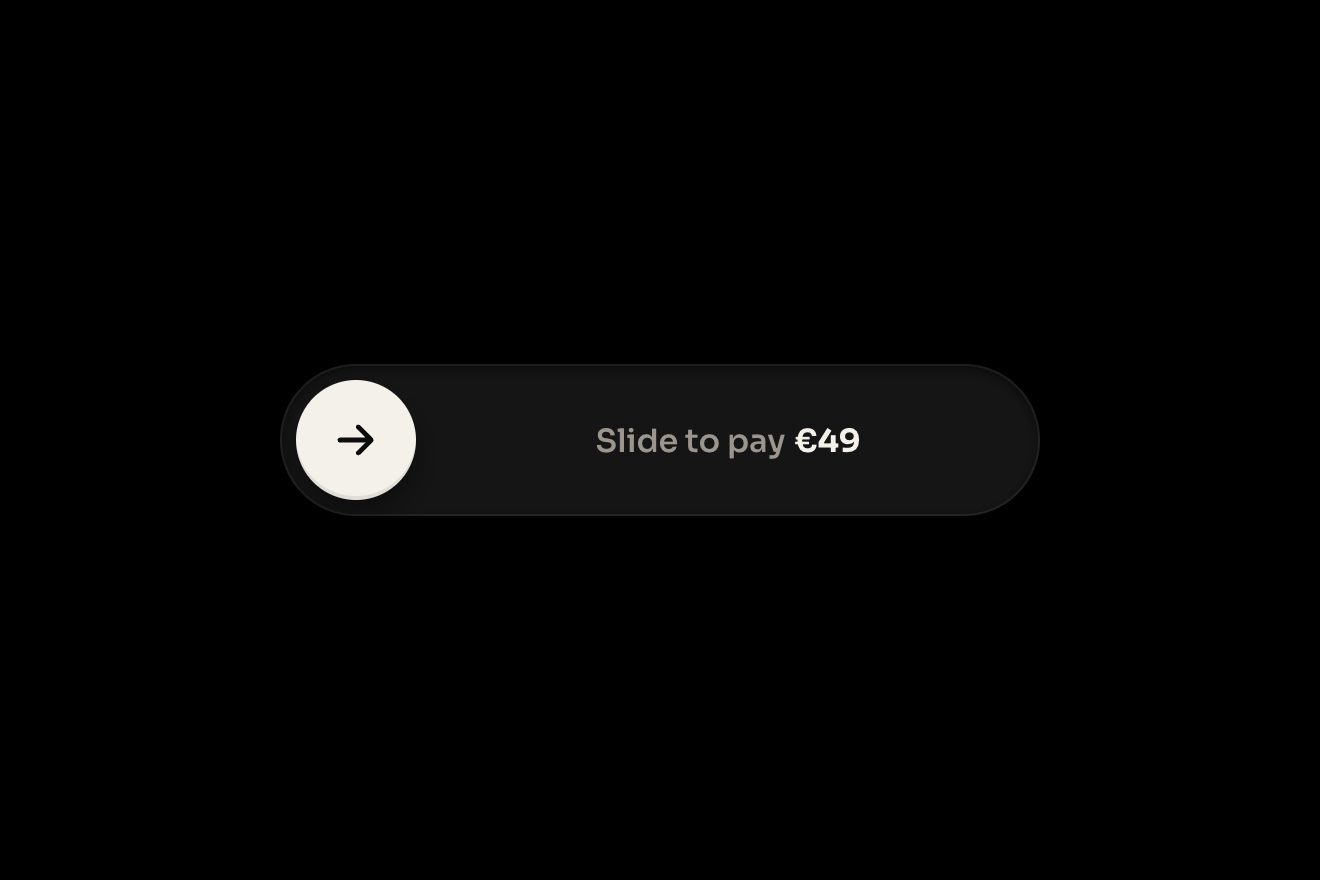
The slide-to-confirm button
Buttons, Physics, Transitions
NewFree
An editor's Export image button is a small instant camera: pressed, the flash fires, the camera jolts and the print comes out of the slot with its white border, dropping and swinging on a spring. On the print the picture develops like instant film: dark grey green, then the colours come up in patches, with a cast that turns from cyan to warm, and the blacks close last.
A folder that runs on its own: index.html, style.css, script.js and the libraries from a CDN. The React and Vue tabs hold the same demo as a ready component, which switches its animations off when it leaves the page.
<!doctype html>
<html lang="en">
<head>
  <meta charset="utf-8">
  <meta name="viewport" content="width=device-width, initial-scale=1">
  <title>The instant photo button</title>
  <link rel="stylesheet" href="https://cdn.jsdelivr.net/npm/@fontsource-variable/geist@5.3.0/index.css">
  <link rel="stylesheet" href="style.css">
</head>
<body>
  <main class="stage">
    <!-- the instant photo button: an editor's Export image button drawn as a small instant camera. Pressed, the flash
         fires, the camera jolts and the print comes out of the slot underneath, swings and develops in a canvas -->
    <div class="snap" data-snap data-autoclic>
      <div class="snap__rig" data-rig>
        <!-- the print: under the camera, clipped at the slot -->
        <div class="snap__exit">
          <button class="print" type="button" tabindex="-1" aria-label="Clear the exported image" data-print>
            <span class="print__frame">
              <canvas class="print__image" width="312" height="208" aria-hidden="true" data-canvas></canvas>
              <span class="print__gloss" aria-hidden="true"></span>
            </span>
            <span class="print__note" aria-hidden="true">hillside-dusk.png</span>
          </button>
        </div>

        <button class="cam" type="button" aria-label="Export image as PNG" data-cam>
          <span class="cam__key" aria-hidden="true"></span>
          <span class="cam__body" aria-hidden="true">
            <span class="cam__cap"></span>
            <span class="cam__finder"></span>
            <span class="cam__flash" data-flash><span class="cam__fresnel"></span><span class="cam__fire" data-fire></span></span>
            <span class="cam__seam"></span>
            <span class="cam__lens">
              <svg viewBox="0 0 100 100">
                <defs>
                  <linearGradient id="ip-barrel" x1="0" y1="0" x2="0" y2="1">
                    <stop offset="0" stop-color="#4a4f4c"/>
                    <stop offset="0.5" stop-color="#1b1e1d"/>
                    <stop offset="1" stop-color="#0c0e0d"/>
                  </linearGradient>
                  <linearGradient id="ip-bezel" x1="0.2" y1="0" x2="0.8" y2="1">
                    <stop offset="0" stop-color="#c9ccc6"/>
                    <stop offset="0.45" stop-color="#5b605c"/>
                    <stop offset="0.7" stop-color="#2a2e2c"/>
                    <stop offset="1" stop-color="#8b908b"/>
                  </linearGradient>
                  <radialGradient id="ip-glass" cx="0.42" cy="0.36" r="0.7">
                    <stop offset="0" stop-color="#3a4a7a"/>
                    <stop offset="0.35" stop-color="#1a2240"/>
                    <stop offset="0.8" stop-color="#07090f"/>
                    <stop offset="1" stop-color="#020304"/>
                  </radialGradient>
                  <radialGradient id="ip-deep" cx="0.5" cy="0.5" r="0.5">
                    <stop offset="0" stop-color="#05060a"/>
                    <stop offset="0.7" stop-color="#0d1222"/>
                    <stop offset="1" stop-color="#26315a"/>
                  </radialGradient>
                </defs>
                <circle cx="50" cy="50" r="49" fill="url(#ip-barrel)"/>
                <circle class="lens__grip" cx="50" cy="50" r="44.5"/>
                <circle cx="50" cy="50" r="38" fill="url(#ip-bezel)"/>
                <circle cx="50" cy="50" r="34.5" fill="#0b0d0c"/>
                <circle cx="50" cy="50" r="32" fill="url(#ip-glass)"/>
                <circle cx="50" cy="50" r="17" fill="url(#ip-deep)"/>
                <circle class="lens__ring" cx="50" cy="50" r="22"/>
                <g class="lens__glints" data-glints>
                  <path class="lens__glint" d="M27 37a26 26 0 0 1 21-15" />
                  <path class="lens__glint lens__glint--soft" d="M70 66a24 24 0 0 1-12 9" />
                  <path class="lens__coat" d="M34 58a18 18 0 0 0 9 9" />
                  <path class="lens__coat lens__coat--green" d="M62 34a17 17 0 0 1 6 8" />
                </g>
              </svg>
            </span>
            <span class="cam__text">
              <span class="cam__label" data-label>Export image</span>
              <span class="cam__sub" data-sub>PNG · 2400 × 1600</span>
            </span>
            <span class="cam__chin"><span class="cam__slot"></span></span>
            <span class="cam__sheen" data-sheen></span>
          </span>
        </button>

        <p class="snap__saved" data-saved>
          <svg viewBox="0 0 20 20" aria-hidden="true"><path d="M10 3.5v8.25M6.6 8.6 10 12l3.4-3.4"/><path d="M3.75 12.5v2.25c0 .7.56 1.25 1.25 1.25h10c.7 0 1.25-.55 1.25-1.25V12.5"/></svg>
          <span data-saved-text>Saved to Downloads</span>
        </p>
      </div>
      <span class="snap__bloom" aria-hidden="true" data-bloom></span>
      <p class="sr" aria-live="polite" data-live></p>
    </div>
  </main>

  <script src="https://cdn.jsdelivr.net/npm/gsap@3.15.0/dist/gsap.min.js"></script>
  <script src="script.js"></script>
</body>
</html>Change values, colours and text with the controls and watch the animation respond live. Or write in the code yourself. Then download the folder with your changes.
21 values to change
With the Animorio connector, Claude Code takes it from here, guide included, and fits it into your project. Paste this request:
Take “The instant photo button” from Animorio and fit it into my siteThe little landscape (a dusk sky, a low sun, three ranges of hills with a line of light on their ridges, firs and grass against the light, a vignette) is drawn only once in a hidden canvas at double density, with gradients and paths made of sums of waves. getImageData keeps the final colour of every pixel, with a little grain, and its luminance.
For each pixel a value noise on a grid is worked out once, in four octaves, its coordinates bent by a second noise (domain warping): so the patches come out round and uneven like the reagent spreading. The coordinates are in CSS pixels, so the patches keep their size at any density.
Each pixel has its own threshold: luminance (the light parts clear first), the noise times BLOTCH and a little height (the reagent comes in from the top). Every frame the development time moves on and each pixel goes with a smoothstep from the grey green base tone to its colour. Two more times, also moved by the noise, decide when the colour comes up from grey and when the shadows, lifted towards a muddy grey, close into the blacks.
Over the whole print a cast is added that starts cyan green, turns warm halfway and fades at the end, times TINT. The drawing loop writes a reused ImageData with putImageData only while the development runs; when it is over the final picture is laid down and the loop stops drawing.
A GSAP timeline fires the flash, the light on the body and the glow round it, and jolts the camera with an elastic. The motor pushes the print out at a steady pace in EJECT seconds; then the print is free: its drop and its angle are two damped springs moved by hand on the ticker, four steps a frame with the step capped at 1/30 of a second, and the angle starts with a push that swings it by SWING degrees.
| Name | File | Default | What it changes |
|---|---|---|---|
DEVELOP | script.js | 5.5 | The seconds the picture takes to develop. |
EJECT | script.js | 1.1 | The seconds the motor takes to push the print out. |
SWING | script.js | 6 | How far the print swings as it drops out, in degrees. |
DAMPING | script.js | 0.16 | How quickly the swing dies down (1 = no swing). |
BLOTCH | script.js | 1 | How patchy the development is: 0 even, 2 in big blotches. |
TINT | script.js | 1 | How strong the colour casts are while it develops. |
LABELS | script.js | ['Export image', 'Exporting', 'Exported'] | The words on the camera: at rest, while it works, when done. |
SAVED | script.js | 'Saved to Downloads' | The line under the print. |
For the action that exports or saves an image in an editor, a cover maker or a photo app, where seeing the print come out and develop says clearly that the file is there. Better for a single, deliberate action than for an automatic save.
The camera, the print and the line fit in 260 pixels across and less than 380 down, so they fit whole on a 390 pixel screen. The picture's canvas is always at double density. A touch takes the shutter key down like a mouse press.
No jolt, no flash, no ejection and no swing: the print fades in where it hangs and the picture rises from grey green to its colours in one even fade, with no patches. The Saved to Downloads line fades in.
GSAP 3.15.0, Geist (font variabile) 5.3.0.
Compressed with gzip, the three demo files weigh 11 KB; the libraries: GSAP 28 KB.
Tested on 5 October 2026
Use it in your own projects and in your clients’ projects. Do not resell it or redistribute it as is. GSAP stays under its own Standard license. Full license.
With your account’s email and password.
or with your email
You’re signed in as .
With your account, you can download the zip of every animation and every pack, for free.