Guide
How to build a scroll animation with GSAP and ScrollTrigger
From the first animation that starts when an element enters the screen to sections that hold still while the content moves: how trigger, start, end, scrub and pin work, how to add Lenis for smooth scrolling, and the mistakes that break everything without a single error message.
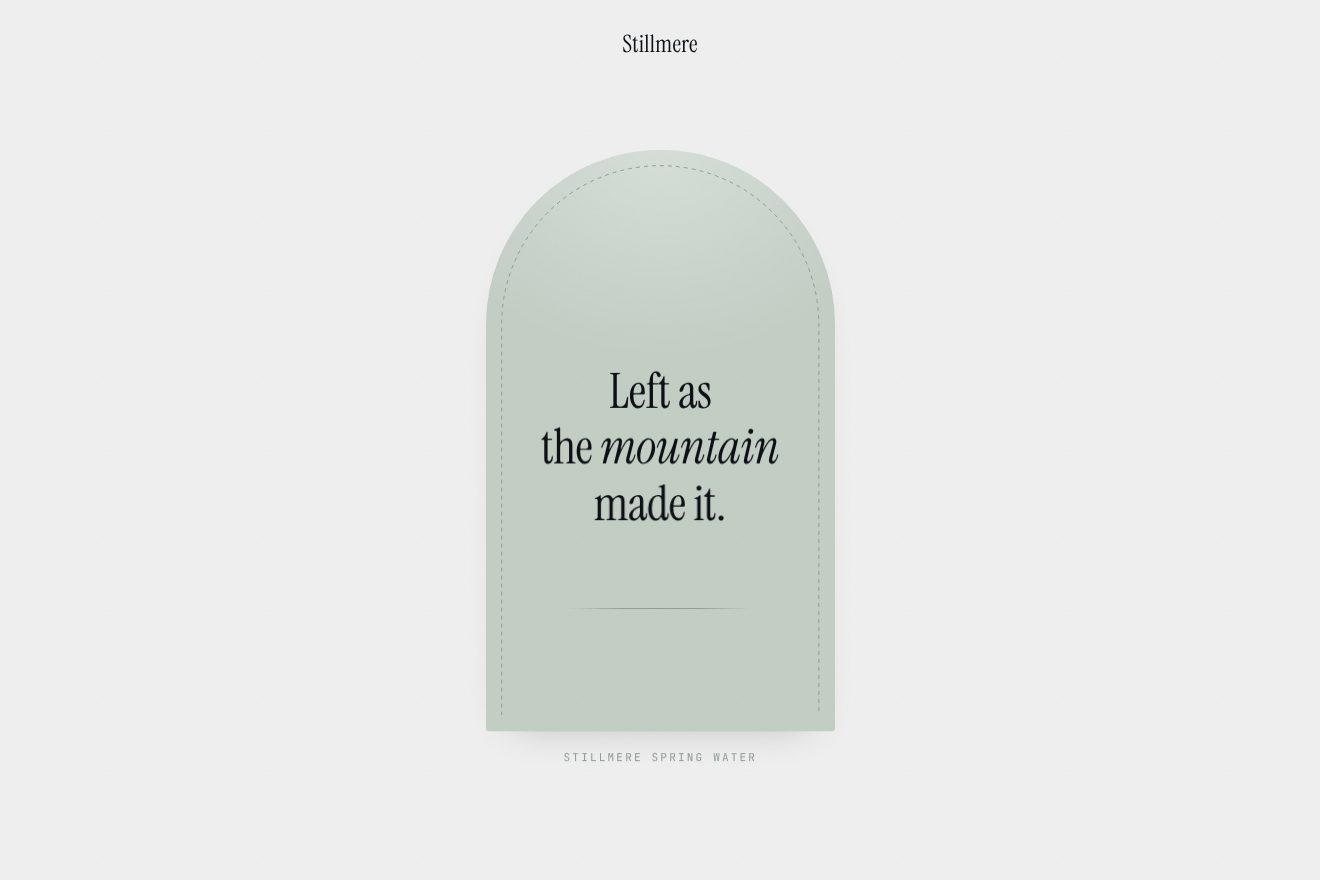 Centre arch reveal
A scroll animation is an animation tied to the position of the page rather than to time. There are two kinds, and it pays to tell them apart before writing any code. In the first, scrolling is only a switch: when an element enters the screen a normal animation plays, with its own duration, and after that the scroll position no longer matters. In the second, scrolling is the playhead: the animation moves forward as the page goes down and backwards as it comes up, as if the reader were holding it by the hand. GSAP with its ScrollTrigger plugin does both with the same syntax, and it is what we use for almost every scroll piece in the Animorio library.
Setting up the page
GSAP and ScrollTrigger load together, and the plugin has to be registered once, before any animation is created. With a bundler you import them from npm; on a plain page two script tags are enough.
import { gsap } from 'gsap';
import { ScrollTrigger } from 'gsap/ScrollTrigger';

gsap.registerPlugin(ScrollTrigger);
Forget the registration and ScrollTrigger does not complain. Every animation simply plays at once on load, as if there were no scrolling at all. When nothing seems to react to the page, check this first.
The first animation: play when the element arrives
The most common case is a heading that rises into place as it reaches the screen. You write an ordinary tween and add a scrollTrigger property to it.
gsap.from('.heading', {
  y: 60,
  opacity: 0,
  duration: 0.9,
  ease: 'power3.out',
  scrollTrigger: {
    trigger: '.heading',
    start: 'top 85%',
  },
});
The part to understand is start. Its two words say which point of the element has to meet which point of the viewport: top 85% means the animation starts when the top edge of the heading reaches 85% of the way down the screen, just above the bottom. With top bottom it would fire the moment the heading peeks in, usually before anyone is looking at it; with top center it would fire halfway up, after the reader’s eyes have already passed over it. Somewhere between 80% and 90% is where the whole movement is actually seen.
By default, scrolling back up leaves the animation finished. If it should replay each time, use toggleActions, which takes four commands: what to do on entering while scrolling down, on leaving while scrolling down, on coming back while scrolling up and on leaving while scrolling up. The value 'play none none reverse' rewinds the animation when the element drops out of the bottom, and it feels the most natural on lists of cards.
Tying the animation to the scroll with scrub
With scrub the animation stops having a duration of its own: its progress becomes the position of the page between start and end.
gsap.to('.arch', {
  scale: 1,
  ease: 'none',
  scrollTrigger: {
    trigger: '.arch-section',
    start: 'top top',
    end: '+=120%',
    scrub: 0.6,
  },
});
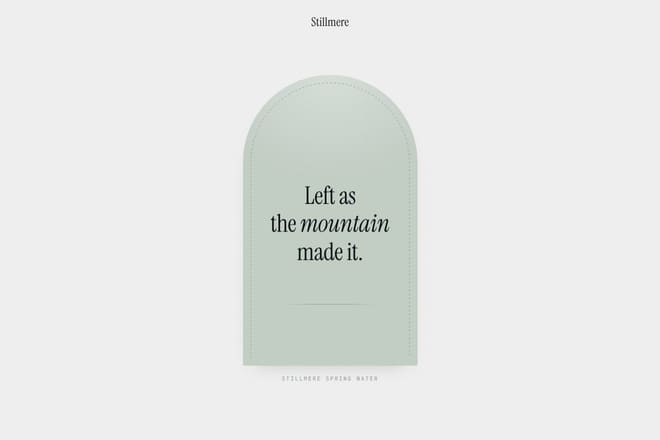
Three details make the difference. The first is ease: 'none'. When the animation follows the scroll, an extra curve stacks on top of the movement of the hand and makes it feel odd, so keep it linear and put the character somewhere else. The second is the value of scrub: true glues the animation to the scrollbar, a number makes it chase the scrollbar with that many seconds of lag. Anything between 0.4 and 1 gives the slight, soft delay you can see in the arch that opens from the centre on scroll, where the arch grows just behind the hand. The third is end written as '+=120%', which means “finish after scrolling 120% of the viewport height from where you started”. It is far easier to tune than an absolute position.
Several steps in a row: the timeline
When the scroll has to tell more than one thing, one after another, use a timeline with a single ScrollTrigger. Positions inside the timeline are no longer seconds but shares of the scroll distance.
const tl = gsap.timeline({
  scrollTrigger: {
    trigger: '.product',
    start: 'top top',
    end: '+=300%',
    scrub: 0.8,
    pin: true,
  },
});

tl.from('.panel-a', { xPercent: -110 })
  .from('.panel-b', { yPercent: 110 }, '<0.2')
  .from('.panel-c', { xPercent: 110 }, '<0.2')
  .to('.figure', { textContent: 1240, snap: { textContent: 1 } });
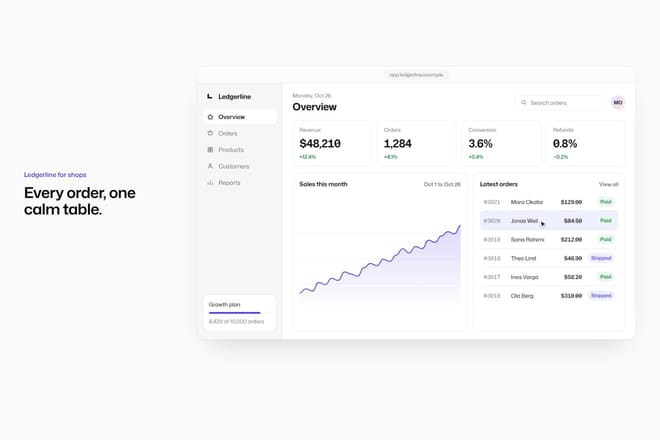
The whole timeline gets stretched over three screens of scrolling. If one step should last longer, give it a longer duration than the others; if you need a pause, add an empty tween. That is how the dashboard that assembles piece by piece on scroll is built: a window that stays still in the middle and panels that arrive one at a time, each from its own side.
Holding the section: pin
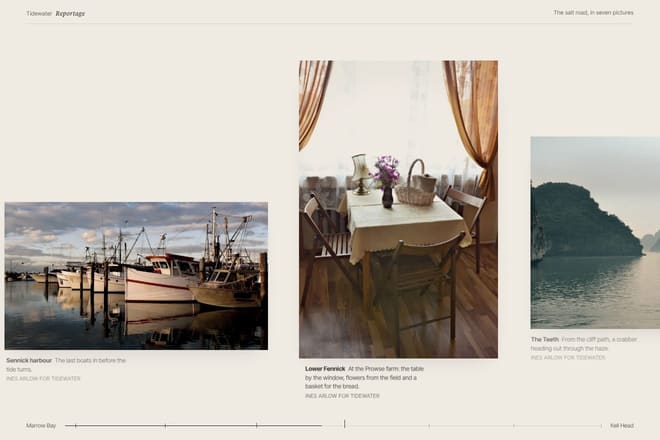
With pin: true ScrollTrigger keeps the section fixed for the whole distance between start and end, and adds the same amount of space below so the rest of the page does not slide up over it. It is the technique behind the stacking cards and the reportage gallery, where the page stops and the photos run sideways.
const row = document.querySelector('.row');

gsap.to(row, {
  x: () => -(row.scrollWidth - window.innerWidth),
  ease: 'none',
  scrollTrigger: {
    trigger: '.gallery',
    start: 'top top',
    end: () => '+=' + (row.scrollWidth - window.innerWidth),
    scrub: true,
    pin: true,
    invalidateOnRefresh: true,
  },
});
The functions instead of fixed numbers are there for resizing. When the window changes size ScrollTrigger recalculates everything, and invalidateOnRefresh makes it read the row’s width again. Without it, rotating a phone leaves the gallery stopping halfway or running past its end.
Pinning has one rule worth learning straight away: pin the container, not a child sitting inside another animated element. If an ancestor already has a transform, the position: fixed that ScrollTrigger applies while pinning behaves like absolute, and the section drifts away. In that case move the pin to an outer element, or use pinReparent.
Smooth scrolling with Lenis
Lenis makes wheel scrolling smooth, with a short inertia, without changing how the page works: anchors, the scrollbar and the keyboard all stay native. It does need to be wired into ScrollTrigger, otherwise the two read the scroll position at different moments and animations jitter.
import Lenis from 'lenis';

const lenis = new Lenis({ duration: 1.1 });

lenis.on('scroll', ScrollTrigger.update);
gsap.ticker.add((time) => lenis.raf(time * 1000));
gsap.ticker.lagSmoothing(0);
GSAP’s ticker becomes the only clock: Lenis steps forward in the same frame GSAP draws, and ScrollTrigger updates on every step. lagSmoothing(0) stops GSAP from jumping ahead after a slow frame while Lenis does not. On phones Lenis leaves native scrolling alone by default, which is right: a finger already scrolls smoothly, and extra inertia gets in the way.
The bugs that never throw
Scroll animations almost always break silently. These are the cases we run into most.
once: true on a timeline with a ScrollTrigger. It looks like the obvious way to play something only once. On a timeline with a ScrollTrigger, though, opening a page that is already scrolled halfway down (after a reload, or with the back button) can leave ScrollTrigger in a state where no other trigger on the page updates. It is fine on a single tween or on ScrollTrigger.create; on timelines, use toggleActions or kill the trigger yourself in onLeave.
Measuring too early. ScrollTrigger works out positions when it is created. If an image without width and height loads afterwards, or a web font changes the height of the headings, every start point is off by a few hundred pixels. The fix is to always give images their dimensions and to call ScrollTrigger.refresh() once fonts are ready, with document.fonts.ready.then(...).
An empty list. If a selector matches nothing, GSAP warns “target not found” and still creates an empty tween that lengthens the timeline, so everything after it arrives late. Check the length of a list before animating it.
Too many ScrollTriggers. One per element is fine for ten elements. On a grid of three hundred cards every trigger measures the page on every resize, and a phone freezes for seconds. For long lists use a single IntersectionObserver that creates each animation as its card arrives; the guide on animating at 60 frames per second covers it.
Percentages in the stylesheet. GSAP does not read percentage values from your CSS, and its inline transform wipes out the one set by a class. If an element is centred with translate(-50%, -50%), GSAP loses it. Our rule is simple: one element for GSAP and its child for CSS, or pass the percentages to GSAP through xPercent and yPercent.
Respecting people who turn motion off
Anyone who has asked their system to reduce motion should not get sideways-scrolling sections or flying headings. With gsap.matchMedia both versions live in the same place.
const mm = gsap.matchMedia();

mm.add('(prefers-reduced-motion: no-preference)', () => {
  /* pinned and scrubbed animations go here */
});

mm.add('(prefers-reduced-motion: reduce)', () => {
  gsap.set('.panel', { clearProps: 'all' });
});
The reduced version is not an empty page. All the content has to be there, already in place, at most with a fade. The guide on accessible animation goes into what to remove and what to keep.
Where to start
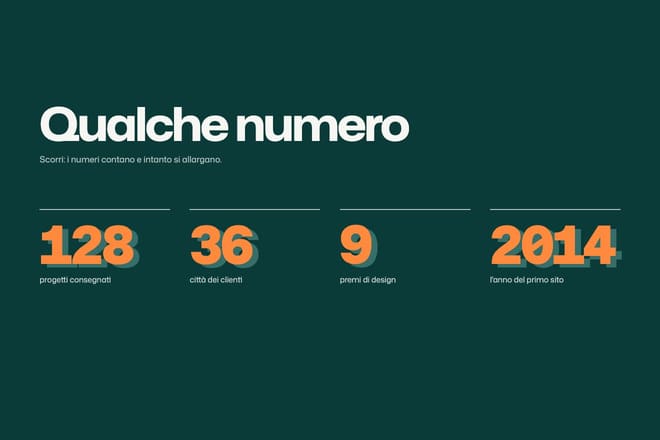
The quickest way to learn is to take an example that works and change one value at a time. Every scroll piece in the library has a Playground with knobs: move start, change the scrub, watch what happens, then copy the code. The headline that opens the photo is a good example of a pin with several steps, and numbers that count up and widen is one of the simplest cases of an animation that plays on arrival. From there, an afternoon is enough to start building sections of your own.
Try them in the library
The pieces this guide mentions, with the live demo, the knobs and the code.