The star rating
Ratings, SVG, Hover
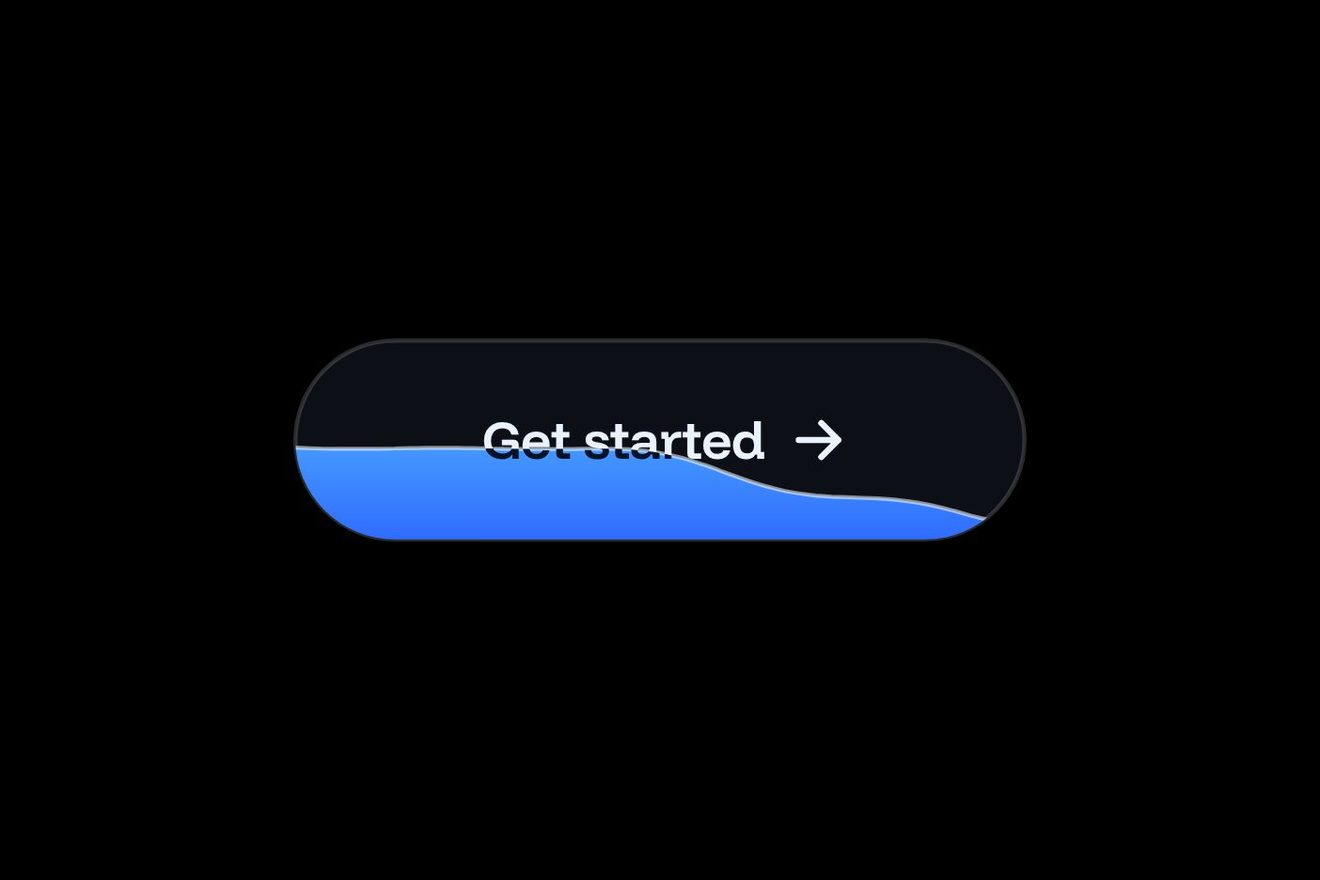
A design app’s button to vectorize an image, on black: a graphite pill with a leaf made of squares on the transparency checks. On hover a line of light peeks in and the first column of pixels already turns into curve; on click the light crosses the leaf («Tracing paths» with the percent) and behind it the pixel staircase melts into one smooth curve, then the anchors pop in with their handles and the PNG tag becomes SVG.
A folder that runs on its own: index.html, style.css, script.js and the libraries from a CDN. The React and Vue tabs hold the same demo as a ready component, which switches its animations off when it leaves the page.
<!doctype html>
<!--
  "Vectorize button" from Animorio · https://animorio.com
  License: free on your own sites and your clients’ sites, paid work included.
  Not for resale, redistribution, templates or code collections · https://animorio.com/en/license/
-->
<html lang="en">
<head>
  <meta charset="utf-8">
  <meta name="viewport" content="width=device-width, initial-scale=1">
  <title>The Vectorize button with the pixels that become the curve</title>
  <link rel="stylesheet" href="https://cdn.jsdelivr.net/npm/@fontsource-variable/mona-sans@5.3.0/wdth.css">
  <link rel="stylesheet" href="style.css">
</head>
<body>
  <main class="stage" data-stage>
    <!-- a design app's Vectorize button: a line of light crosses the pixel leaf
         and, behind it, the staircase melts into one smooth curve with its anchors -->
    <button class="btn" type="button" data-btn data-autoclic>
      <span class="btn__light" aria-hidden="true"></span>

      <span class="tile" aria-hidden="true">
        <svg class="art" data-art viewBox="0 0 40 40">
          <defs>
            <pattern id="scacchi" width="8" height="8" patternUnits="userSpaceOnUse">
              <rect width="8" height="8" fill="#131316"/>
              <rect width="4" height="4" fill="#1b1b1f"/>
              <rect x="4" y="4" width="4" height="4" fill="#1b1b1f"/>
            </pattern>
            <linearGradient id="foglia" x1="0.15" y1="0.1" x2="0.85" y2="0.95">
              <stop offset="0" style="stop-color: var(--accento-chiaro)"/>
              <stop offset="0.55" style="stop-color: var(--accento)"/>
              <stop offset="1" style="stop-color: var(--accento-scuro)"/>
            </linearGradient>
            <linearGradient id="raggio" x1="0" y1="0" x2="1" y2="0">
              <stop offset="0" stop-color="#ffffff" stop-opacity="0"/>
              <stop offset="0.5" stop-color="#ffffff" stop-opacity="0.9"/>
              <stop offset="1" stop-color="#ffffff" stop-opacity="0"/>
            </linearGradient>
            <linearGradient id="scia" x1="0" y1="0" x2="1" y2="0">
              <stop offset="0" style="stop-color: var(--accento-chiaro)" stop-opacity="0"/>
              <stop offset="1" style="stop-color: var(--accento-chiaro)" stop-opacity="0.22"/>
            </linearGradient>
            <clipPath id="dentro"><rect width="40" height="40" rx="9"/></clipPath>
            <clipPath id="forma"><path data-clip d=""/></clipPath>
          </defs>
          <g clip-path="url(#dentro)">
            <rect width="40" height="40" fill="url(#scacchi)"/>
            <path class="art__shadow" data-shadow d=""/>
            <path class="art__leaf" data-leaf d="" fill="url(#foglia)"/>
            <g clip-path="url(#forma)"><g class="art__grid" data-grid></g></g>
            <path class="art__edge" data-edge d=""/>
            <path class="art__rib" data-rib d=""/>
            <g data-scan opacity="0">
              <rect class="art__trail" data-trail x="0" y="0" width="12" height="40" fill="url(#scia)"/>
              <rect data-beam x="-1.5" y="0" width="3" height="40" fill="url(#raggio)"/>
            </g>
          </g>
          <g data-nodes></g>
          <rect class="art__rim" x="0.5" y="0.5" width="39" height="39" rx="8.5"/>
        </svg>
      </span>

      <span class="btn__words">
        <span class="btn__label" data-idle>Vectorize</span>
        <span class="btn__label" data-busy aria-hidden="true">Tracing paths</span>
        <span class="btn__label" data-done aria-hidden="true">Vector ready</span>
      </span>
      <span class="btn__side">
        <span class="btn__tag" data-png>PNG</span>
        <span class="btn__tag btn__tag--pct" data-pct aria-hidden="true">0%</span>
        <span class="btn__tag btn__tag--svg" data-svg aria-hidden="true">SVG</span>
      </span>
    </button>
    <p class="sr" data-live aria-live="polite"></p>

    <svg class="ghost" data-ghost viewBox="0 0 24 24" aria-hidden="true"><path d="M5 3.2 19.2 11l-6.3 1.6-3.3 5.9Z"></path></svg>
  </main>

  <script src="https://cdn.jsdelivr.net/npm/gsap@3.15.0/dist/gsap.min.js"></script>
  <script src="script.js"></script>
</body>
</html>Change values, colours and text with the controls and watch the animation respond live. Or write in the code yourself. Then download the folder with your changes.
18 values to change
With the Animorio connector, Claude Code, ChatGPT, Cursor or VS Code take it from here, guide included, and fit it into your project. Paste this request:
Take “Vectorize button” from Animorio and fit it into my siteThe leaf is a curve in polar coordinates, r(θ) with a cosine to the fifth power making the tips. The pixel version comes from the same curve: the squares whose centre is inside the leaf are switched on, and only the sides bordering a switched-off square are kept, which is the outline of their union.
From 240 angles around the centre a ray is cast: on the curve it reads r(θ), on the staircase it looks for the last side crossed. So every point has a partner in the other shape and the change is a point by point interpolation, with no jumps and no crossing points.
A single value, scan, carries the line of light from left to right. Every point turns into curve with a smoothstep on the distance between scan and its x, with a sin(π m) bulge that carries it a touch past and lets it settle. The same path fills the leaf, draws the outline, the offset shadow and the clipPath of the pixel grid.
The four anchors sit on the true curve; the flank handles follow the tangent worked out with a finite difference. They pop in with back.out in the order the light found them; the midrib is a quadratic curve drawn with stroke-dashoffset.
Rest, a hover that gives a taste of the effect, focus, pressed, in progress with aria-busy and the percent, done with an aria-live announcement, and back by itself or with a click. It only redraws when scan or the grid change. A drawn pointer comes in, rests, clicks and waits for the whole round; at the first real touch it stops and starts again after six quiet seconds.
| Name | File | Default | What it changes |
|---|---|---|---|
TRACE | script.js | 1.7 | Seconds for the line of light to cross the leaf. |
HOLD | script.js | 3.4 | Seconds «Vector ready» stays before going back to rest. |
PIXEL | script.js | 4 | Side of the leaf squares before vectorizing, in pixels. |
PEEK | script.js | 0.22 | How much of the leaf turns into curve on hover alone (0 none). |
SETTLE | script.js | 1 | How far the curve goes past and settles as it forms (0 crisp). |
PRESS_SCALE | script.js | 0.972 | How far the pressed button sinks. |
ACCENT | script.js | #8f7cff | The accent colour: the leaf, the glow and the SVG tag. |
In a design app, a photo editor or an AI tool that turns images into vectors: the button that starts the trace. With another icon in the square it suits any action that turns one file into another.
The same animation: the pill is at most the screen width minus 32 pixels and the square stays 40. A tap is hover and click together.
Nothing moves: the light does not cross the leaf, which goes from pixels to curve in one step; labels and tags swap with a fade, the anchors appear without a bounce; the pilot’s pointer is hidden.
GSAP 3.15.0, Mona Sans (font variabile) 5.3.0.
Compressed with gzip, the three demo files weigh 8.2 KB; the libraries: GSAP 28 KB.
Tested on 10 November 2026
Use it in your own projects and in your clients’ projects. Do not resell it or redistribute it as is. GSAP stays under its own Standard license. Full license.
Support Animorio
Animorio stays free thanks to the people who support it. If you like, buy us a coffee: it helps us make the next animations.
You asked for
We made it for you: it’s in the library, with the preview, the Playground and the code to copy.
An animation you can’t find, or a site to take apart in the journal: tell us which. We pick the next ones from here.
With your account’s email and password.
or with your email
You’re signed in as .
With your account, you can download the zip of every animation and every pack, for free.