Guide
Animating at 60 frames per second: what costs the browser and how to save
An animation stutters when the browser cannot draw a frame in sixteen milliseconds. Which properties are free and which are expensive, what layout thrashing is and how to avoid it, when will-change helps, how to animate hundreds of elements with a single IntersectionObserver, and how to test on a real phone.
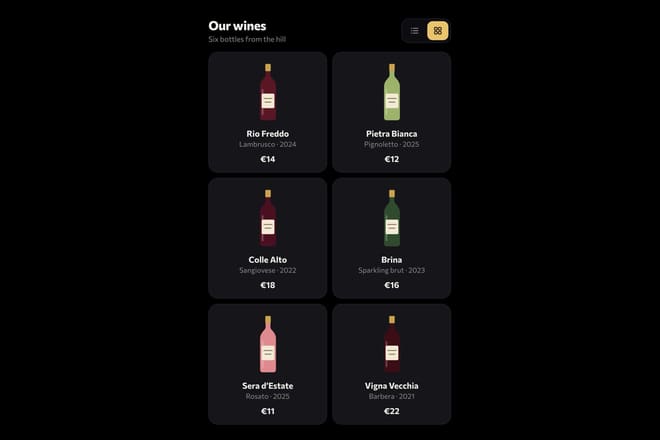
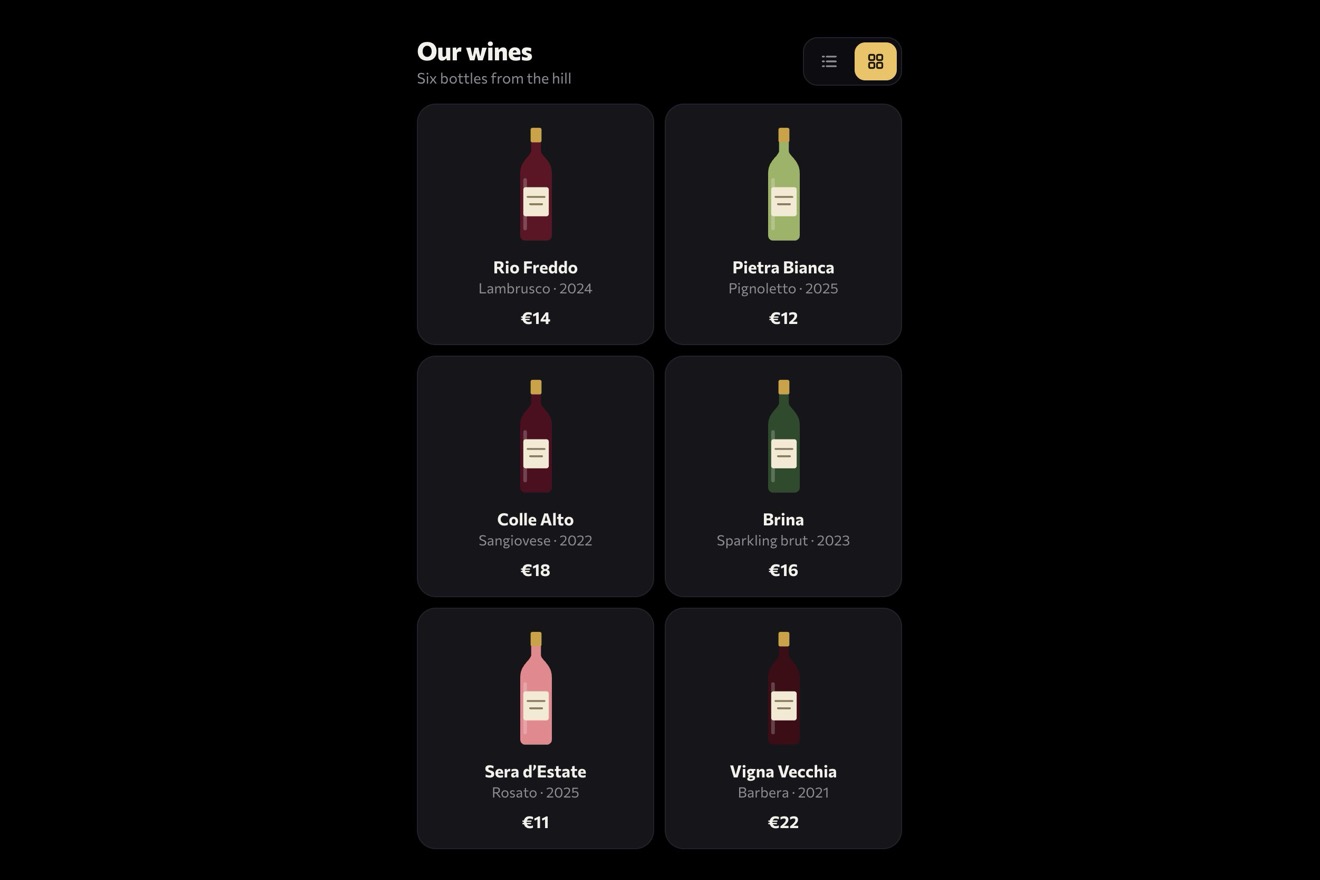 List or grid
A typical screen refreshes sixty times a second. For an animation to look smooth, the browser has to prepare each frame in under sixteen and a half milliseconds, and in that time it also has to do everything else: run scripts, respond to clicks, decode images. When it cannot keep up, it drops a frame, and the eye notices straight away as a small tear in the movement. On a recent laptop there is plenty of room. On a mid-range phone in battery saver mode there is very little. This guide explains where the time goes and how not to waste it.
How the browser draws a frame
Whenever something changes on the page, the browser may have to do up to four jobs, in this order.
Style. Work out which CSS rules apply to each element.
Layout. Work out where every element sits and how big it is. If one element changes width, everything around it can move too, and the calculation spreads across half the page.
Paint. Fill in the pixels: text, colours, shadows, borders.
Composite. Put the already painted layers together, move them, rotate them, fade them, and send the result to the screen. This job runs on the graphics chip and is extremely fast.
That is the whole secret of smooth animation: animate only the properties that touch the last step. If a frame only needs compositing, the browser skips layout and paint, and the animation stays smooth even while the rest of the page is busy.
The free properties: transform and opacity
In practice two properties touch only compositing: transform (moving, rotating, scaling) and opacity. Animating anything else costs more. The same effect can almost always be achieved two ways, one expensive and one cheap.
/* expensive: every frame recalculates layout */
.panel { transition: left 0.4s, width 0.4s; }

/* cheap: compositing only */
.panel { transition: transform 0.4s; }
Moving an element with left or top sends it through layout; moving it with translate does not. Widening it with width shifts everything around it; enlarging it with scale does not. For a background that swells, like the one on pill buttons, scale a separate layer behind the text, so the text does not stretch and the layout stays still.
The blur filter, large shadows and clip-path sit in between: they cost a repaint on every frame, which is fine on small elements. On a full-screen image, an animated blur is the quickest way to make a phone stutter.
Layout thrashing
One mistake slows down even animations that only use transform: reading and writing layout values alternately within the same frame. Every time you read a measurement such as offsetHeight or getBoundingClientRect() after changing a style, the browser has to recalculate layout immediately to answer. In a loop over a hundred elements that becomes a hundred layout passes instead of one.
/* slow: reads and writes a hundred times */
cards.forEach((c) => {
  const h = c.offsetHeight;
  c.style.transform = `translateY(${h * 0.1}px)`;
});

/* fast: all the reads first, then all the writes */
const heights = cards.map((c) => c.offsetHeight);
cards.forEach((c, i) => {
  c.style.transform = `translateY(${heights[i] * 0.1}px)`;
});
The rule is to batch: measure everything first, then change everything. GSAP already does this internally for the animations it manages, which is one reason it outperforms a lot of hand-written code. The problem comes back when you mix its animations with reads done inside an onUpdate or a scroll handler.
Events that fire too often
Scroll and pointer movement can fire more than sixty events a second. Doing heavy work inside those handlers is the most common cause of jank. There are two fixes. For scrolling, leave the maths to ScrollTrigger or an IntersectionObserver, which run at the right point in the frame. For the pointer, store the position in the handler and draw once per frame.
let x = 0, y = 0;
window.addEventListener('pointermove', (e) => { x = e.clientX; y = e.clientY; }, { passive: true });

gsap.ticker.add(() => {
  gsap.set('.cursor', { x, y });
});
The handler costs almost nothing, and the drawing happens in GSAP’s ticker, once per frame. Better still, gsap.quickTo creates a function that is already optimised for updating the same property many times in a row, without creating a new tween on every call.
will-change: when it helps and when it hurts
will-change: transform tells the browser an element is about to move, so the browser promotes it to its own layer ahead of time, ready for compositing. Used well, it removes the small hitch at the start of an animation. Used badly, it does damage: every layer takes graphics memory, and a hundred elements with will-change can exhaust it on a phone, with the opposite effect.
Three practical rules. Only add it to elements that really animate, and often, such as a scrolling gallery or a custom cursor. Remove it when the animation is over, if it will not run again. Never put it on a broad selector that catches the whole page. While animating transform, GSAP already uses 3D transforms that promote the element to its own layer, so most of the time there is nothing to add.
Long lists: one observer instead of a hundred triggers
The case that taught us the most was the Animorio library page, with more than three hundred cards on a single page, each with a small entrance animation. At first every card had its own timeline with its own ScrollTrigger, all created on load. On a phone that meant seconds of blocking work before the page responded: three hundred animations to create and three hundred triggers to measure, and to measure again on every resize.
The fix was to change when each animation is born. CSS holds the starting state, and a single IntersectionObserver watches every card. When one comes on screen, the observer creates its animation and stops watching it.
const watch = new IntersectionObserver((entries) => {
  entries.forEach((e) => {
    if (!e.isIntersecting && e.boundingClientRect.top >= 0) return;
    watch.unobserve(e.target);
    gsap.fromTo(e.target.querySelector('.photo'), { scale: 1.2 }, { scale: 1, duration: 1.2, ease: 'expo.out' });
    e.target.classList.add('seen');
  });
}, { rootMargin: '0px 0px -12% 0px' });

document.querySelectorAll('.card').forEach((c) => watch.observe(c));
Two details matter. The negative bottom rootMargin starts the animation once the card is a little way into the screen, like ScrollTrigger’s start. And the check on boundingClientRect.top immediately opens cards that are already above the screen, which happens when the page reopens part-way down after the back button. Blocking work on load dropped from 3.9 seconds to 0.2 on the same phone.
Lists that rearrange
When many elements move at once, for a filter or a change of view, working out where each one goes by hand is slow and fragile. GSAP’s Flip plugin measures every position before the change, lets CSS produce the new layout, then animates each element with transform from its old place to its new one. Layout gets calculated twice in total, not sixty times a second.
const state = Flip.getState('.wine');
container.classList.toggle('grid');
Flip.from(state, { duration: 0.7, ease: 'power3.inOut', stagger: 0.02 });
In list or grid the bottles on a wine list fly freely to their new spots, growing or shrinking, when you switch views: exactly this technique.
Things that never stop moving
Endless strips such as client logos are a special case: they never finish, so they have to cost as little as possible. Animate a single row with transform, duplicating the content to close the loop, and stop everything when the strip leaves the screen or the browser tab is hidden. In the scrolling client logos the two rows slow to a stop under the pointer with a soft inertia rather than a hard halt.
const loop = gsap.to('.row', { xPercent: -50, duration: 30, ease: 'none', repeat: -1 });

new IntersectionObserver(([e]) => {
  e.isIntersecting ? loop.play() : loop.pause();
}).observe(document.querySelector('.strip'));
Testing on a real phone
The machine you develop on is nearly always much faster than your visitors’ phones. Two tools help. In Chrome’s developer tools, the Performance panel can slow the processor down four or six times: if the animation stutters there, it will stutter on plenty of phones. Recording an animation in the same panel shows dropped frames in red, and above each one whether the time went on scripting, layout or paint. And always try a real phone plugged into your computer: heat, battery saving and 120 Hz screens change things a lot.
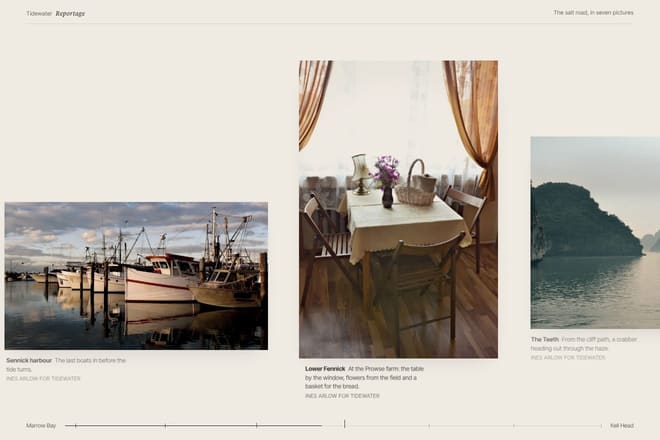
Scroll-driven and 3D pieces, like the photo gallery on a cylinder that turns as you scroll or the stacking cards, are the ones to test most carefully: they move large elements, often with images. Serving images at the size they are actually displayed, not bigger, is on its own one of the most effective improvements you can make.
In short
Animate transform and opacity, not dimensions. Read every measurement before writing. Keep heavy work out of scroll and pointer handlers. Use will-change sparingly. For long lists use one observer, for rearrangements use Flip, for endless motion pause it when nobody can see it. And test everything on a slow phone before you ship it. Every piece in the Animorio library is built with these rules, and the code you copy carries them with it.
Try them in the library
The pieces this guide mentions, with the live demo, the knobs and the code.