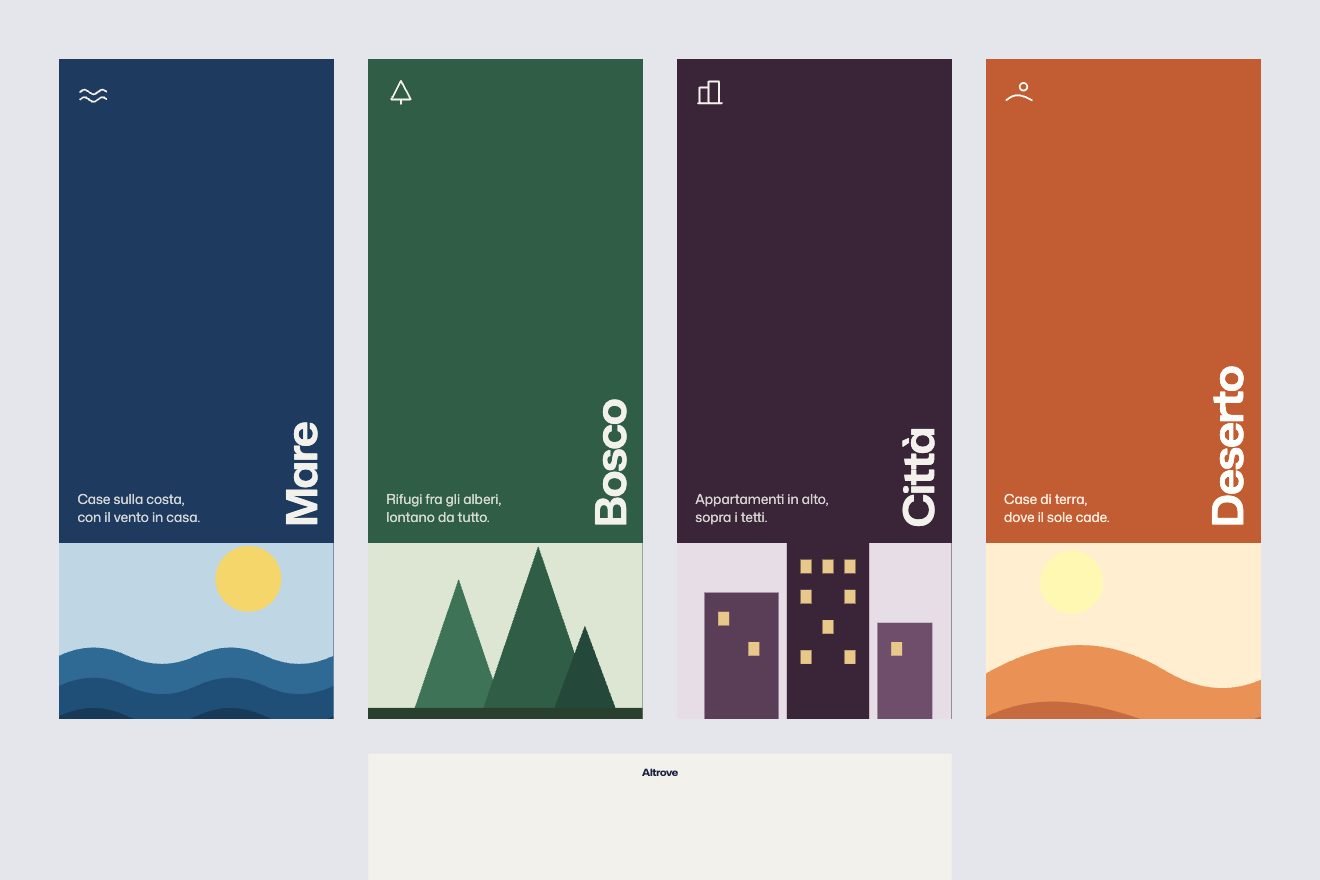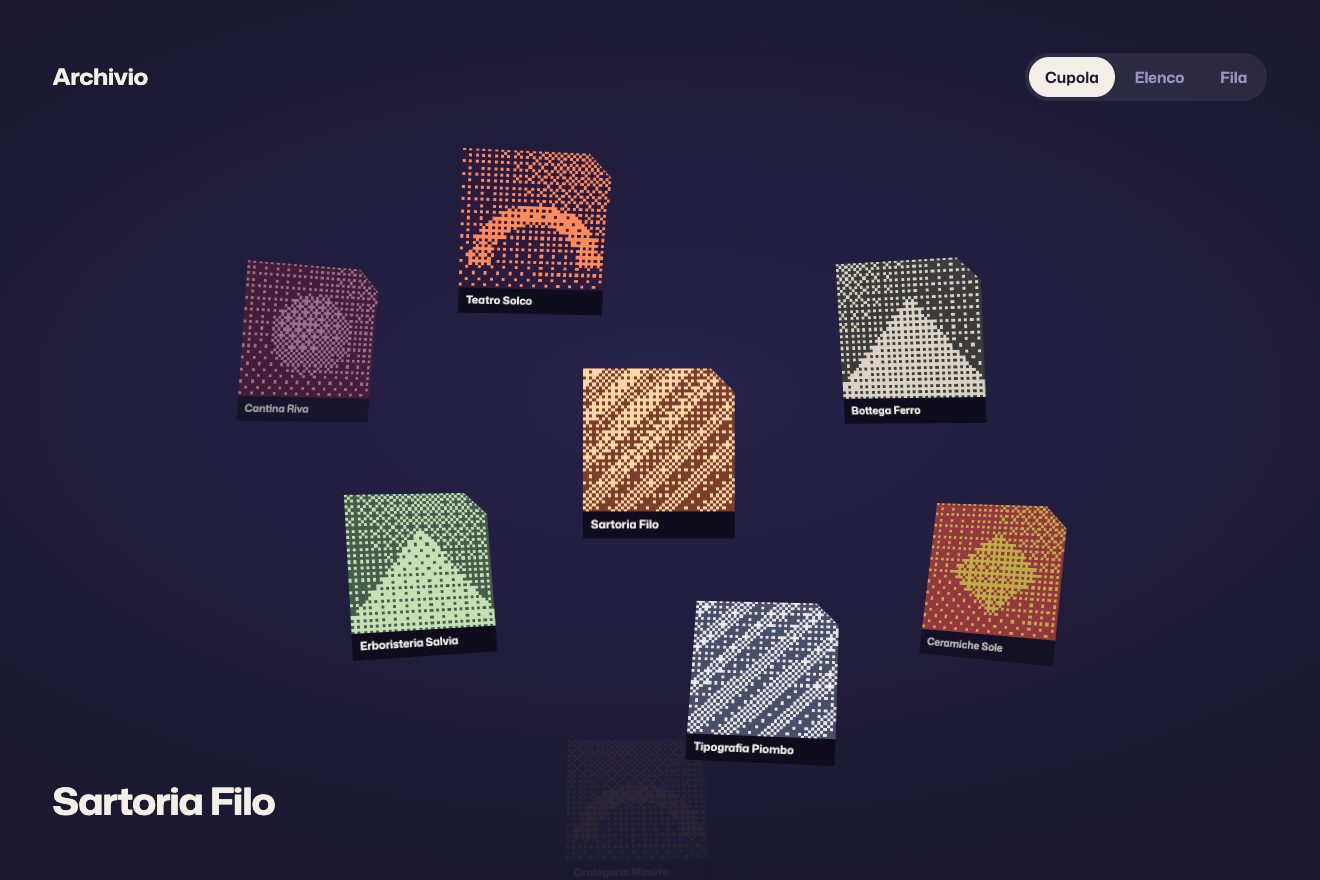
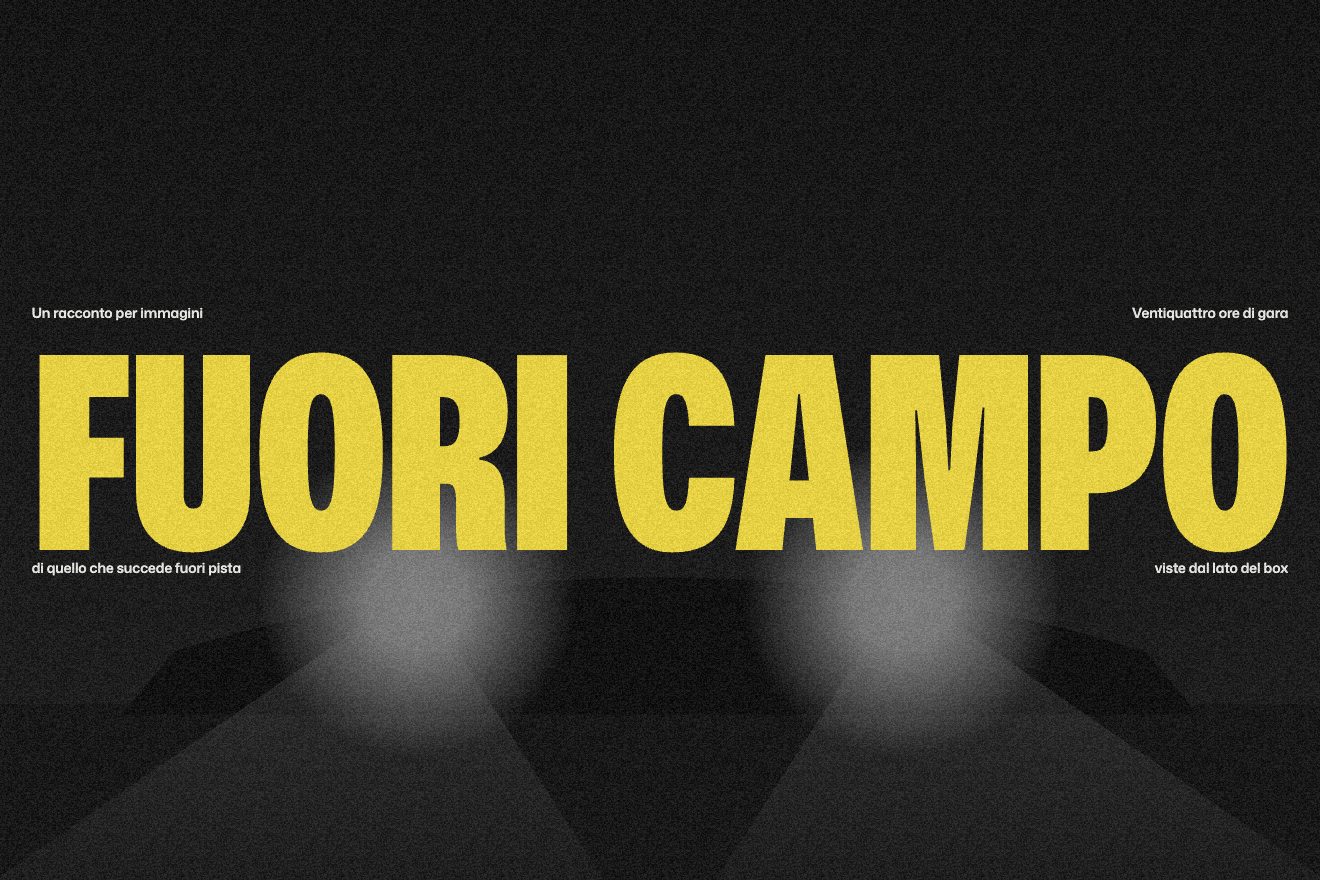
Title rising from a line
Transitions, Text, Images
The page change between the projects of a made-up design studio, in the style of product components: at the bottom of a project page sits the band of the next project, a slice of its cover (a real photo: the harbour with the lighthouse, the lavender field, the starry night over the dunes, the orchard in bloom) with the name above. Clicking it, the title and the facts lift away, the band opens like a window and rises until it becomes the large cover of the new page, the name flies into the title’s place and grows, and below come the facts and the band of the project after that.
A folder that runs on its own: index.html, style.css, script.js and the libraries from a CDN. The React and Vue tabs hold the same demo as a ready component, which switches its animations off when it leaves the page.
<!doctype html>
<!--
  "Rising next project" from Animorio · https://animorio.com
  License: free on your own sites and your clients’ sites, paid work included.
  Not for resale, redistribution, templates or code collections · https://animorio.com/en/license/
-->
<html lang="en">
<head>
  <meta charset="utf-8">
  <meta name="viewport" content="width=device-width, initial-scale=1">
  <title>The next project page transition that rises into place</title>
  <link rel="stylesheet" href="https://cdn.jsdelivr.net/npm/@fontsource-variable/mona-sans@5.3.0/wdth.css">
  <link rel="stylesheet" href="style.css">
</head>
<body>
  <main class="stage" data-stage>
    <!-- a project page of a made-up design studio, Larchmere: the cover, the title, three facts and, at the bottom,
         the band of the next project. Clicking the band makes it rise and become the next page -->
    <header class="bar">
      <span class="bar__brand">
        <svg viewBox="0 0 24 24" aria-hidden="true"><path d="M5 19V5M5 19h14M9 15l4-6 3 4 3-5"/></svg>
        <span data-brand>Larchmere</span>
      </span>
      <nav class="bar__nav" aria-label="Main">
        <span class="bar__link is-on">Work</span>
        <span class="bar__link">Studio</span>
        <span class="bar__link">Contact</span>
      </nav>
    </header>

    <article class="page" data-page>
      <div class="hero" data-hero><span class="hero__img" data-hero-img></span></div>
      <div class="head">
        <h1 class="title" data-title>Quiet Harbor</h1>
        <p class="kicker" data-kicker>Brand and web</p>
      </div>
      <dl class="meta" data-meta>
        <div><dt>Client</dt><dd data-client>Nordvik Ferries</dd></div>
        <div><dt>Year</dt><dd data-year>2026</dd></div>
        <div><dt>Role</dt><dd data-role>Identity, website</dd></div>
      </dl>
    </article>

    <button class="band" type="button" data-band aria-label="Open the next project">
      <span class="band__top">
        <span class="band__label">Next project</span>
        <span class="band__title" data-band-title>Palewave Radio</span>
        <svg class="band__arrow" viewBox="0 0 24 24" aria-hidden="true"><path d="M7 17 17 7M9 7h8v8"/></svg>
      </span>
      <span class="band__cover" data-band-cover><span class="band__img" data-band-img></span></span>
    </button>

    <svg class="cursor" data-cursor viewBox="0 0 24 24" aria-hidden="true"><path d="M5 2.8v16.4l4.2-4 2.8 6.2 2.9-1.3-2.8-6.1h5.9Z"/></svg>
  </main>

  <script src="https://cdn.jsdelivr.net/npm/gsap@3.15.0/dist/gsap.min.js"></script>
  <script src="script.js"></script>
</body>
</html>Change values, colours and text with the controls and watch the animation respond live. Or write in the code yourself. Then download the folder with your changes.
27 values to change
With the Animorio connector, Claude Code, ChatGPT, Cursor or VS Code take it from here, guide included, and fit it into your project. Paste this request:
Take “Rising next project” from Animorio and fit it into my siteEach project has its photo as a WebP next to index.html. The four photos are loaded and decoded right away with new Image(), so the window never opens on an empty cover. Over every photo lies a 160 pixel tile of grain made once in a canvas from a fixed seed generator: the cover, the band and the flying window have two backgrounds, the repeating grain and the photo set to cover.
Inside the band the image is not cropped to the band’s size: it is as large as the page cover and centred, so the band shows its middle strip. While flying the window grows but the image keeps its size, so it looks like it opens rather than zooms; layout() measures it again on every resize.
On click four rectangles are read with getBoundingClientRect: the band, the cover, the name in the band and the title. A fixed copy of the band goes with x, y, width and height from the first to the second in RISE seconds with power4.inOut, one pixel higher, then settles in 0.35 s; the corners go from 14 to ROUND. The name is a copy as large as the title, scaled down to the small name’s size: it goes back to scale 1 as it travels to its place.
Once the copies have landed, a function fills the page with the new project and removes them: the real cover and title are already underneath, identical, so the change does not show. Then a timeline brings in the discipline, the facts, the band’s label row and the band of the next project with back.out.
The autopilot is an async function that waits with gsap.delayedCall, takes the pointer onto the band, turns on the hover, presses and lets the flight run. The first real touch stops it for nine seconds.
| Name | File | Default | What it changes |
|---|---|---|---|
STUDIO | script.js | 'Larchmere' | The name of the made-up studio, at the top left. |
RISE | script.js | 1.05 | The seconds the next project’s band takes to rise and become the cover. |
OUT | script.js | 0.45 | The seconds the current page’s title and facts take to lift away. |
SETTLE | script.js | 1 | The pixels the cover goes past its place before settling. |
ROUND | script.js | 18 | The radius of the cover’s corners, in pixels. |
GRAIN | script.js | 14 | How much grain lies over the cover photos, from 0 to 40. |
HOLD | script.js | 2.6 | The seconds the autopilot leaves a page before moving to the next. |
For the portfolio of a studio, a photographer or an agency, at the bottom of a project page: whoever has finished reading finds the next project and steps into it with one gesture, without going back to the list.
The same transition with adapted sizes: the cover, the title and the band are measured on width and height, the discipline goes under the title and only Work stays in the menu. A tap on the band makes it rise.
No flight: the page and the band fade out and come back with the new project, every four seconds.
GSAP 3.15.0, Mona Sans (font variabile) 5.3.0.
Compressed with gzip, the three demo files weigh 6.2 KB; the libraries: GSAP 28 KB.
Tested on 7 November 2026
Use it in your own projects and in your clients’ projects. Do not resell it or redistribute it as is. GSAP stays under its own Standard license. Full license.
Support Animorio
Animorio stays free thanks to the people who support it. If you like, buy us a coffee: it helps us make the next animations.
You asked for
We made it for you: it’s in the library, with the preview, the Playground and the code to copy.
An animation you can’t find, or a site to take apart in the journal: tell us which. We pick the next ones from here.
With your account’s email and password.
or with your email
You’re signed in as .
With your account, you can download the zip of every animation and every pack, for free.